
Separate VM from a template
Recommended method for preserving the original VM
Of the methods presented, this is the safest for preserving the original VM: recovery takes place in another instance, without reverting its volume or replacing its ROOT disk. You can inspect the recovered system and data before deciding how to use them.
1. Locate the snapshot and create the template
- Open Storage → Volume Snapshots, or use View Volume Snapshots from volume details.
- Select a snapshot of the VM's system disk. Check the source volume, date and zone.
- Verify that snapshot creation completed successfully.
- In snapshot details, click Create Template, using the icon indicated in the screenshot.
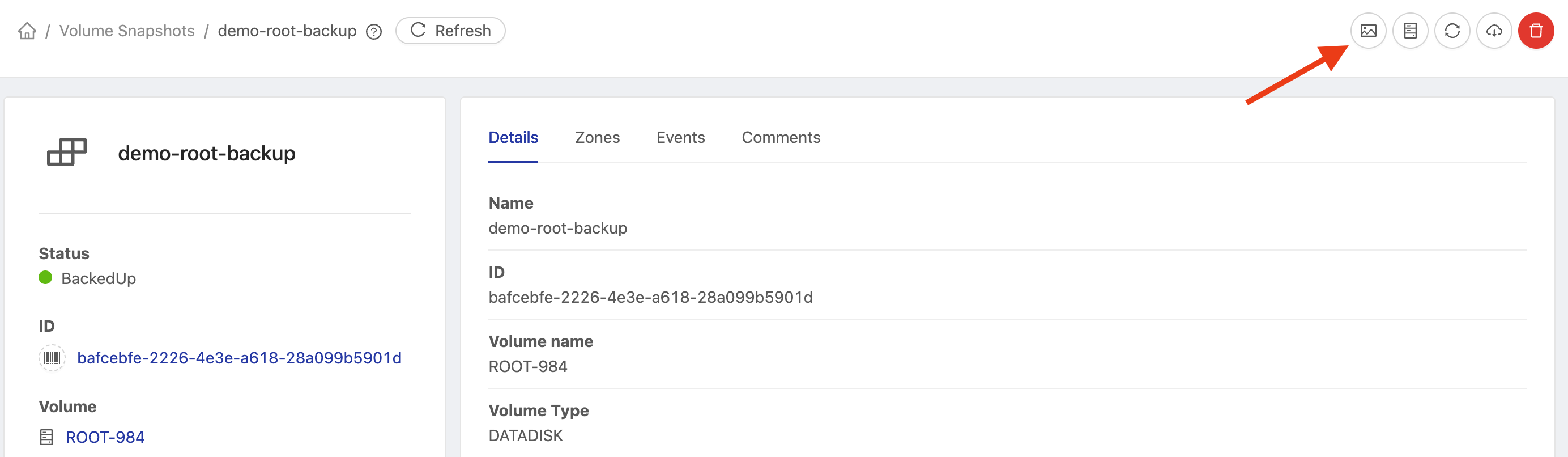
The template uses the contents of this volume. Additional VM data disks are not automatically included; plan their recovery separately if the application requires them.
2. Complete Create Template
In the Create Template dialog, configure:
| Field | Guidance |
|---|---|
| Name | A recognizable recovery name, such as vm-demo-backup. |
| Description | Identify the source VM and the snapshot used. |
| Zone | Select the zone for the template from the available options. |
| Domain | Where applicable, use the domain for your environment. |
| OS type | Select the operating system present in the snapshot. Ubuntu 26.04 LTS is only the screenshot example. |
| Arch | Use the recovered system's architecture; the example uses x86_64. |
| Public | Keep disabled to keep the template and recovered data private. |
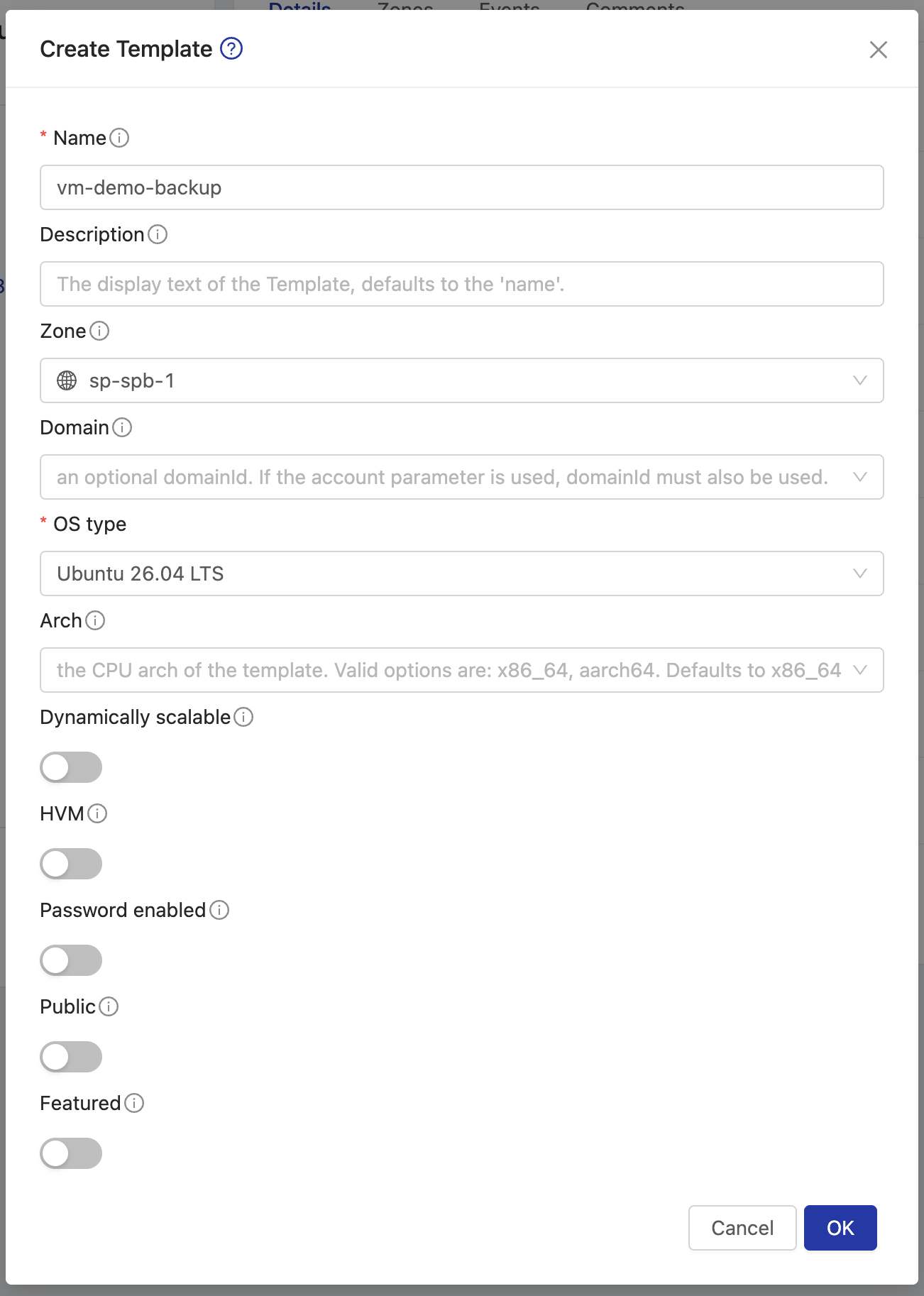
Dynamically scalable, HVM, Password enabled and Featured are disabled in the example. Configure them according to the system and environment. Enable Password enabled only if the template's operating system supports CloudStack password reset; selecting it does not automatically prepare the system. See the template creation reference.
Review the fields and click OK. Wait for template creation to finish.
3. Select the ready template
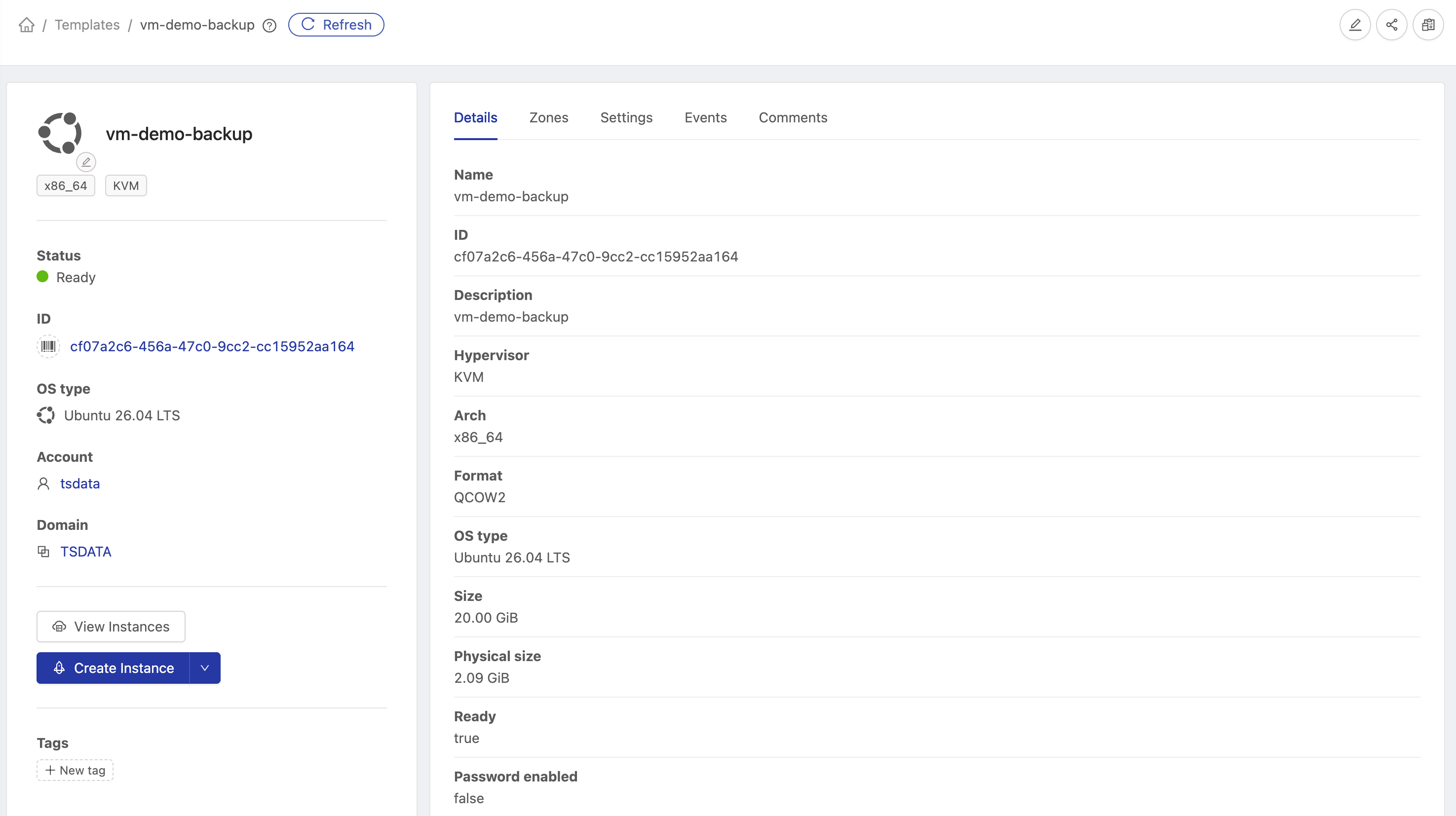
Open Templates and find the new template. Check its name, operating system, architecture and zone. Wait for Ready before creating the instance.
The screenshot shows vm-demo-backup as Ready, with the Create Instance button available.
4. Create a separate instance
- Click Create Instance on the template.
- In the wizard, verify that the newly created template is selected.
- Choose the zone and CPU, memory and storage resources appropriate for the recovered system.
- Give the new VM a distinct name, such as
demo-vm-restore. - Select a network suitable for recovery validation and review the remaining wizard fields.
- Confirm creation and wait for completion.
Validate the copy on a controlled network
The restored disk may contain static IPs, hostnames, credentials and services configured for production. Before the new VM starts, select an isolated or restricted network to avoid conflicts and prevent the copy from running jobs or writing to production services during validation.
5. Start and check the new VM
If the new instance did not start automatically, power it on. Open its console and verify:
- Operating system startup and required services.
- Expected files and settings from the snapshot's point in time.
- Any additional volumes the application needs recovered.
- Network configuration and the new instance's identity.
The result is a separate VM whose system disk contains the snapshot data. The original VM and its disks are preserved. Plan any production traffic, DNS or service cutover after validating recovery.