
Create a new disk
With this method, you create a disk containing the snapshot data, detach the current ROOT and attach the new disk to the VM. The original disk remains separate, preserving its contents unless deleted.
1. Create the disk from the snapshot
- Open Storage → Volume Snapshots or View Volume Snapshots from the volume details page.
- Find the system disk snapshot to recover. Check the source volume, VM, date and zone.
- Open the snapshot and select the action to create a volume from the snapshot, indicated by the disk icon in the screenshot.
- Give the new disk a recognizable name, such as
demo-backup, complete the fields requested by the console and confirm. - Wait for successful creation and locate the new volume under Storage → Volumes.
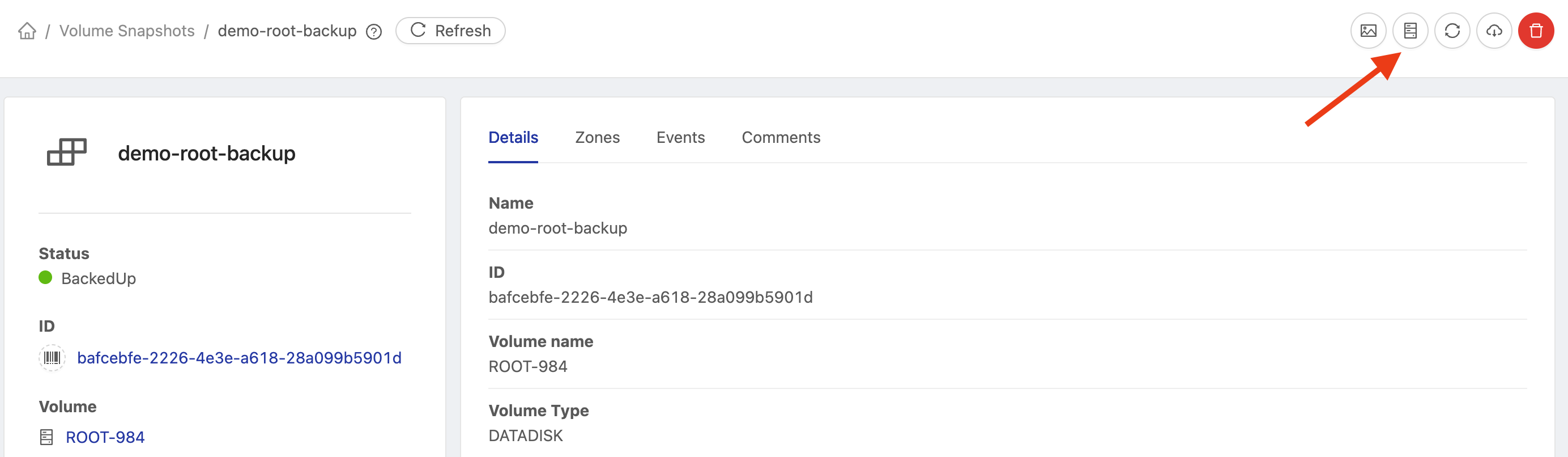
Use a snapshot of the VM's system disk for this procedure. Verify its origin even if the new volume initially appears as DATADISK.
2. Stop the VM
Shut down applications properly and power off the VM that will receive the disk. Wait for the console to show Stopped.
Keep the VM powered off until ROOT replacement is complete. Record the names or IDs of the original and new disks to verify each operation.
3. Detach the current ROOT
Open the VM details, go to Volumes and select its current ROOT disk. Use the Detach action indicated in the screenshot and confirm after checking the volume.
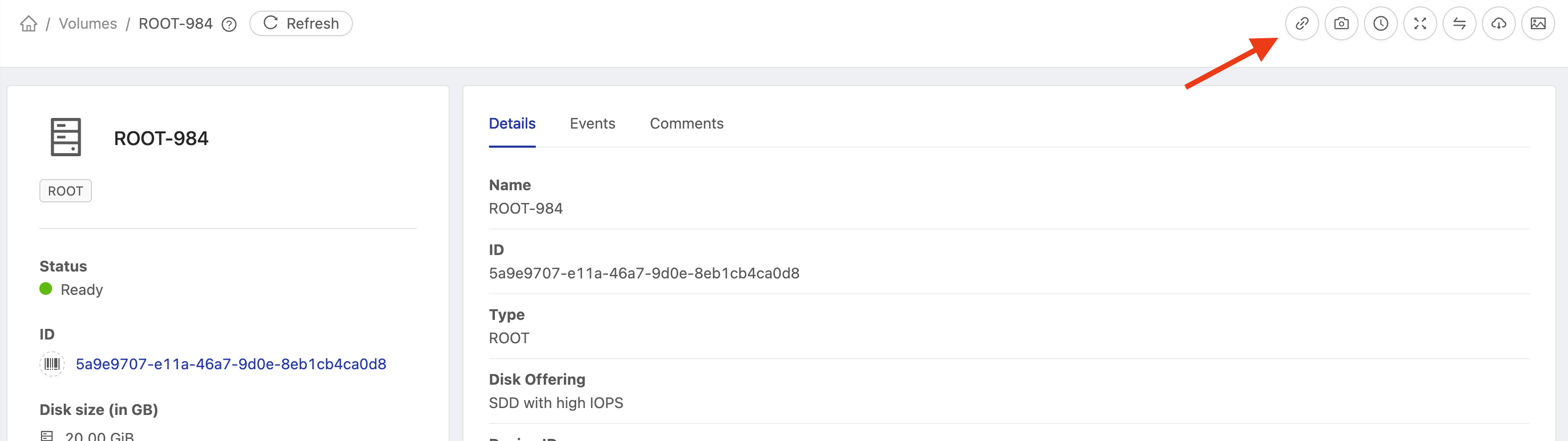
Wait for completion and verify that the old ROOT is no longer attached to the VM.
Preserve the original disk
Detaching removes the disk's association with the VM. Do not delete the old volume during recovery: keep it available until you have validated startup and data on the new disk.
4. Attach the new disk as ROOT
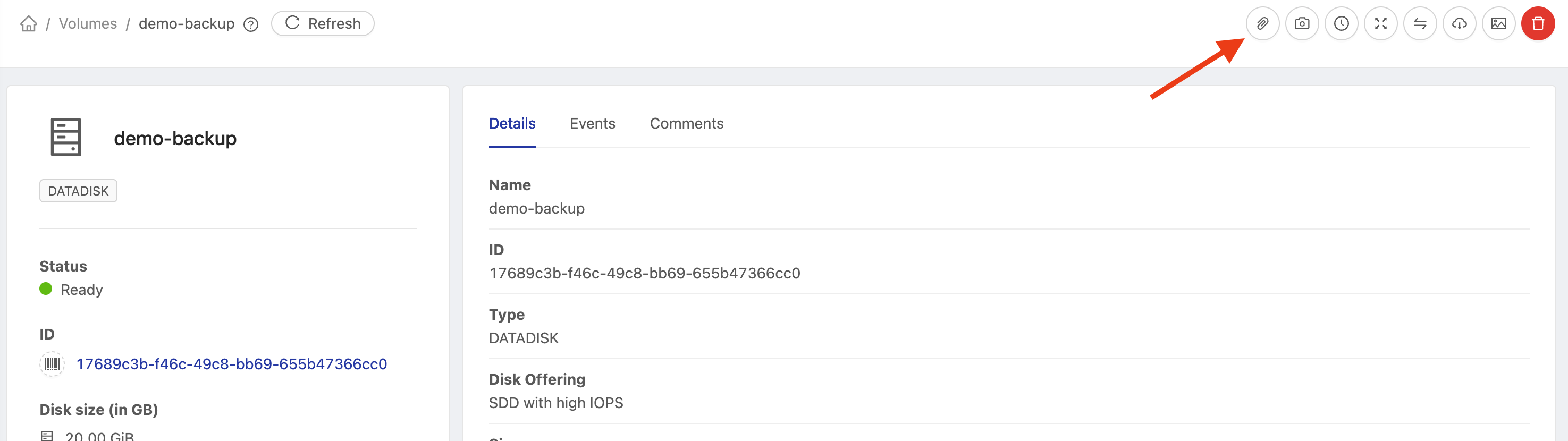
Under Storage → Volumes, open the disk created from the snapshot, named demo-backup in the example. Click Attach Disk, as indicated in the screenshot.
In the Attach Disk dialog:
| Field | Value |
|---|---|
| Instance ID | Select the stopped VM whose ROOT was detached. |
| Device ID | Enter 0 to attach the volume as ROOT. |
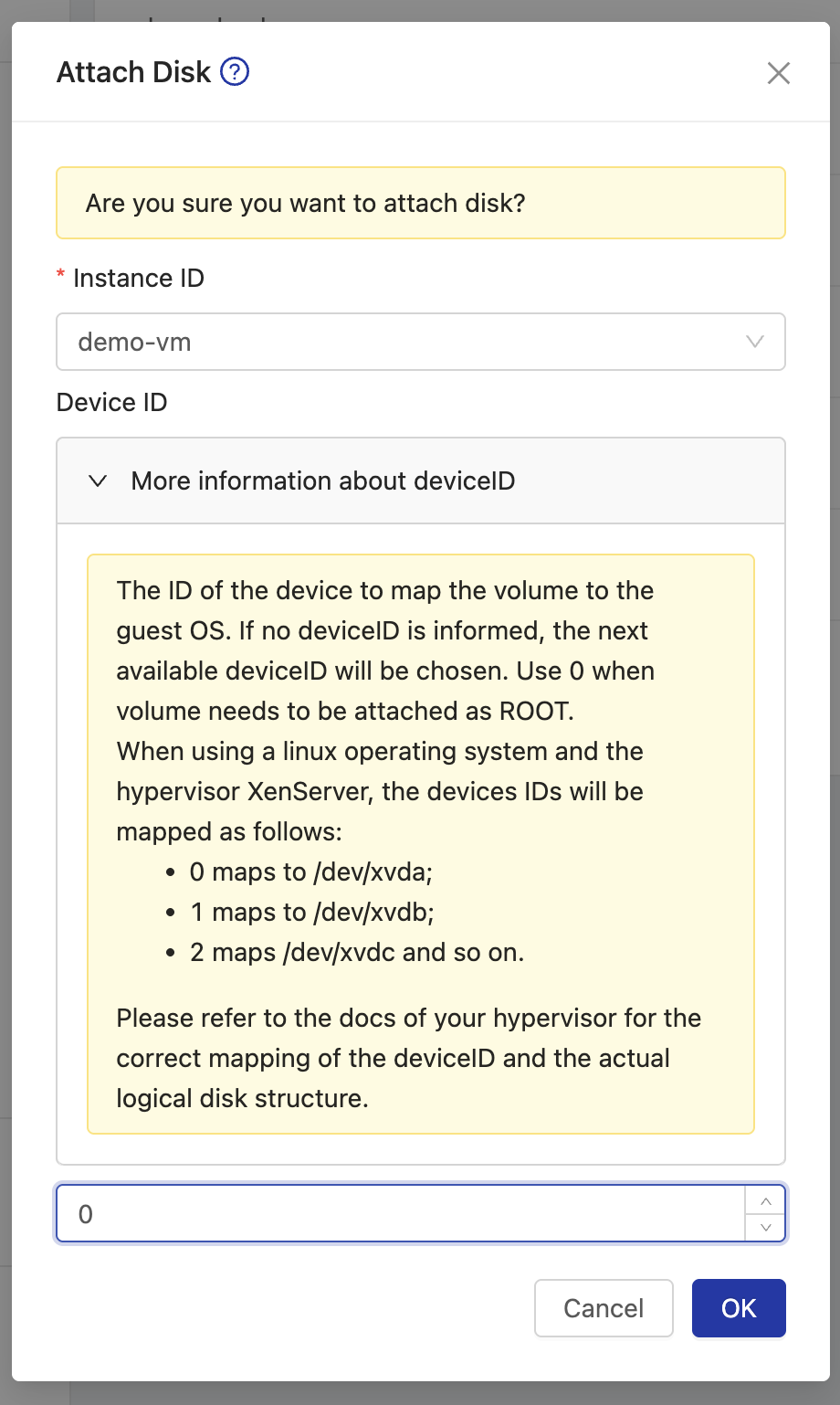
::: important ROOT disk Device ID Explicitly enter Device ID = 0. If left blank, another available ID may be selected. Confirm the new disk and destination VM before clicking OK. :::
Click OK and wait for completion. In the VM's Volumes list, verify that the new disk is associated as ROOT, with Device ID 0. If the operation fails or the association is incorrect, keep the VM powered off and contact the responsible team.
Using Device ID 0 for ROOT is also documented in the CloudStack volume attachment reference.
5. Start the VM and validate
After confirming the new ROOT association:
- Power on the VM and wait for startup.
- Check the operating system, files and services.
- Verify that the contents match the selected snapshot's point in time.
The VM now boots from the new disk with the snapshot data. Later changes on the old disk are not automatically copied to it. Other VM volumes remain unchanged; check consistency for applications using multiple disks.
Keep the original disk until restore validation is complete.