

Disk snapshots
Before you start
Sign in to the cloud console and identify the VM and disk to protect. The screenshots use demo-vm and volume ROOT-984 as examples; select your own resources.
A snapshot captures the selected volume at a point in time, without memory or CPU state. If the VM has several disks, repeat the procedure for each required volume. See the CloudStack volume snapshot documentation.
VM state
Whether snapshots can be taken while the VM is running depends on the environment and storage configuration. If the console blocks the operation, contact the responsible team before scheduling downtime. For databases and applications with ongoing writes, coordinate data consistency with the application team.
Take a manual snapshot
1. Open the VM volumes
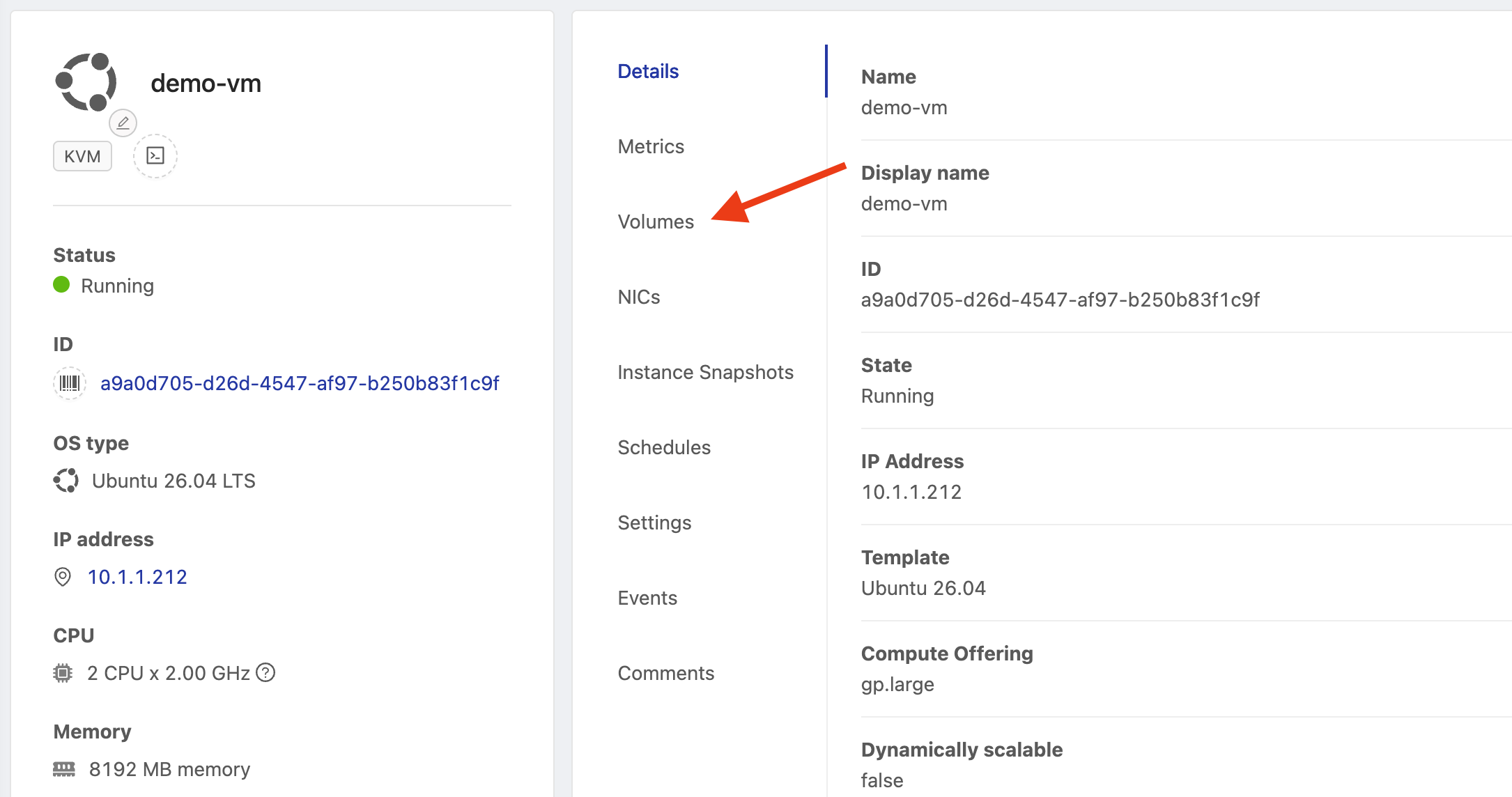
Select the VM in the console. On its details page, click Volumes.
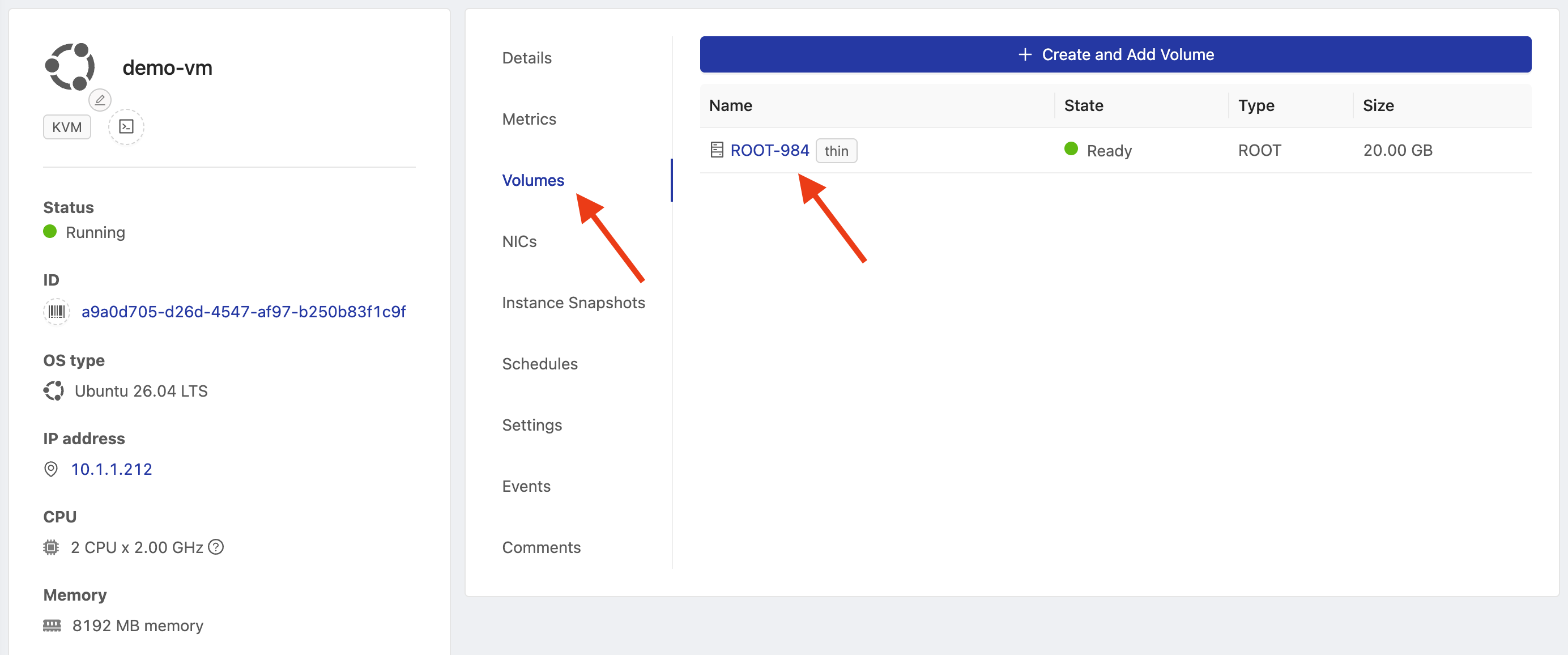
Check the disk name, type and size in the list, then click the required volume. The example shows a ROOT disk, the VM's system disk.
2. Click Take Snapshot
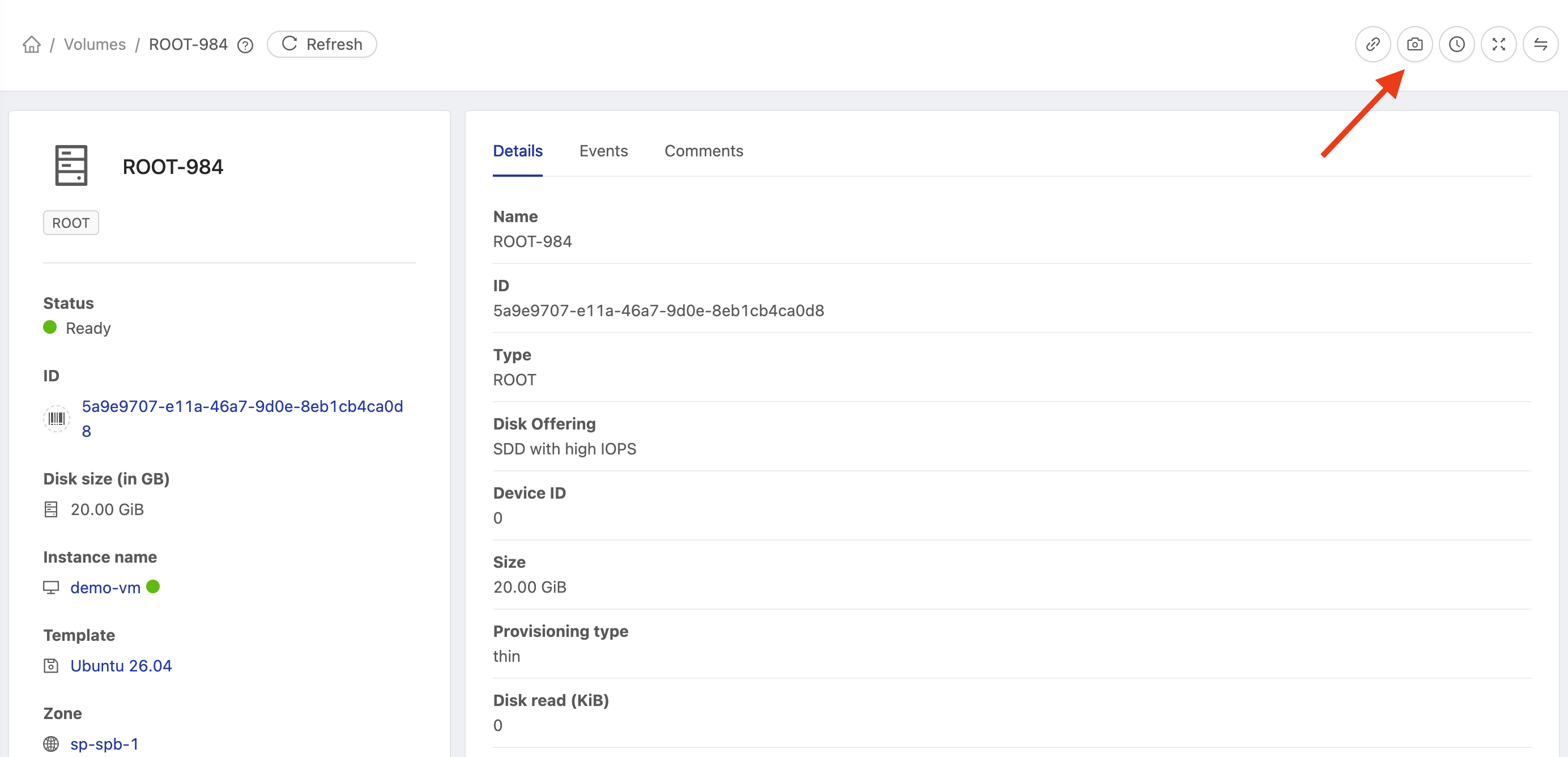
On the volume details page, click the camera icon for Take Snapshot.
3. Complete and confirm
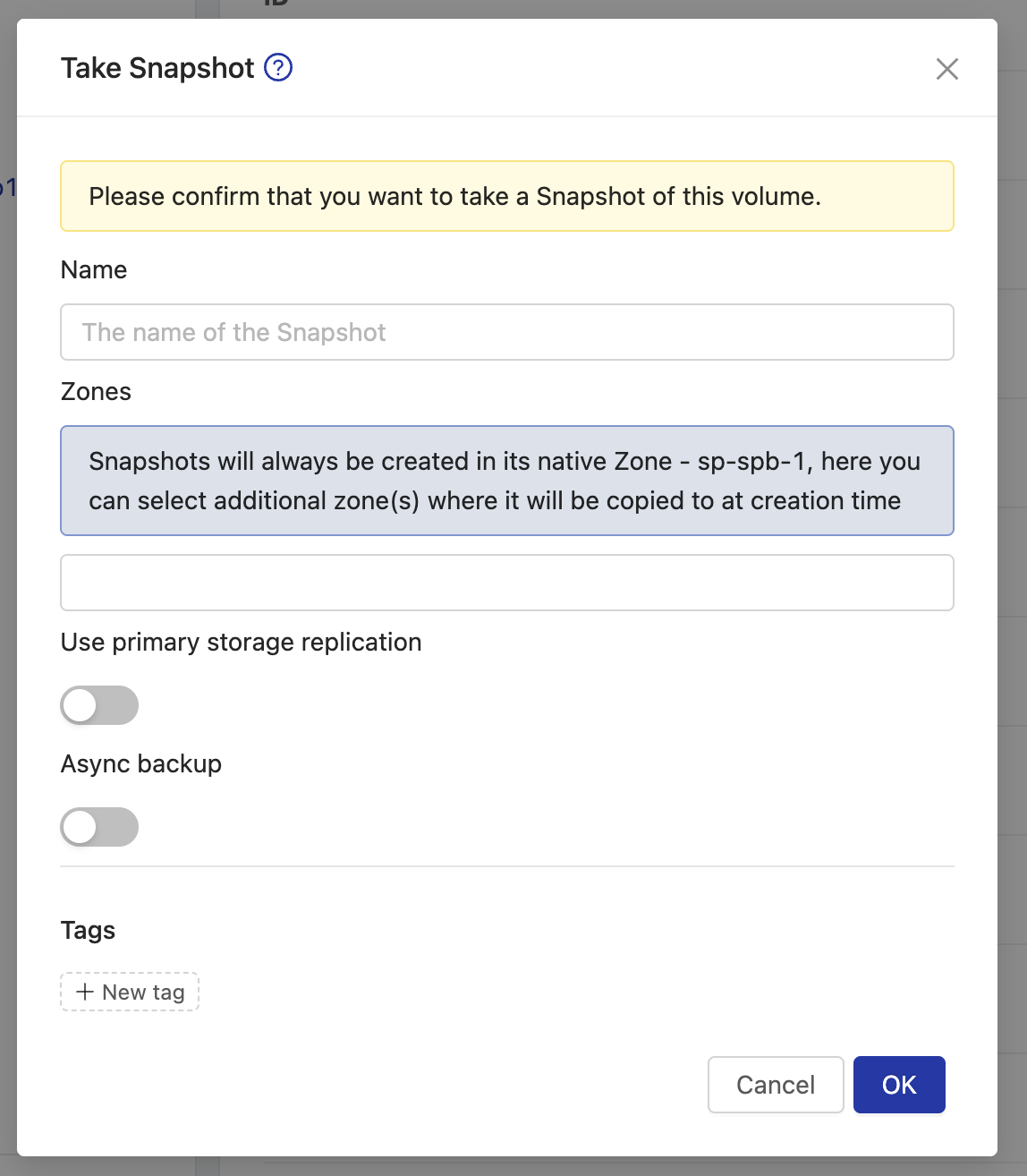
In the Take Snapshot dialog:
- Enter a descriptive Name, such as
demo-vm-root-before-update. - Review Zones. The dialog identifies the native zone and allows additional zones to be selected when available.
- To follow the example, leave Use primary storage replication and Async backup disabled. Check with the responsible team if you need these features.
- Optionally add Tags to organize your snapshots.
- Click OK and wait for the operation to finish.
4. Check View Volume Snapshots
On the volume details page, click View Volume Snapshots.
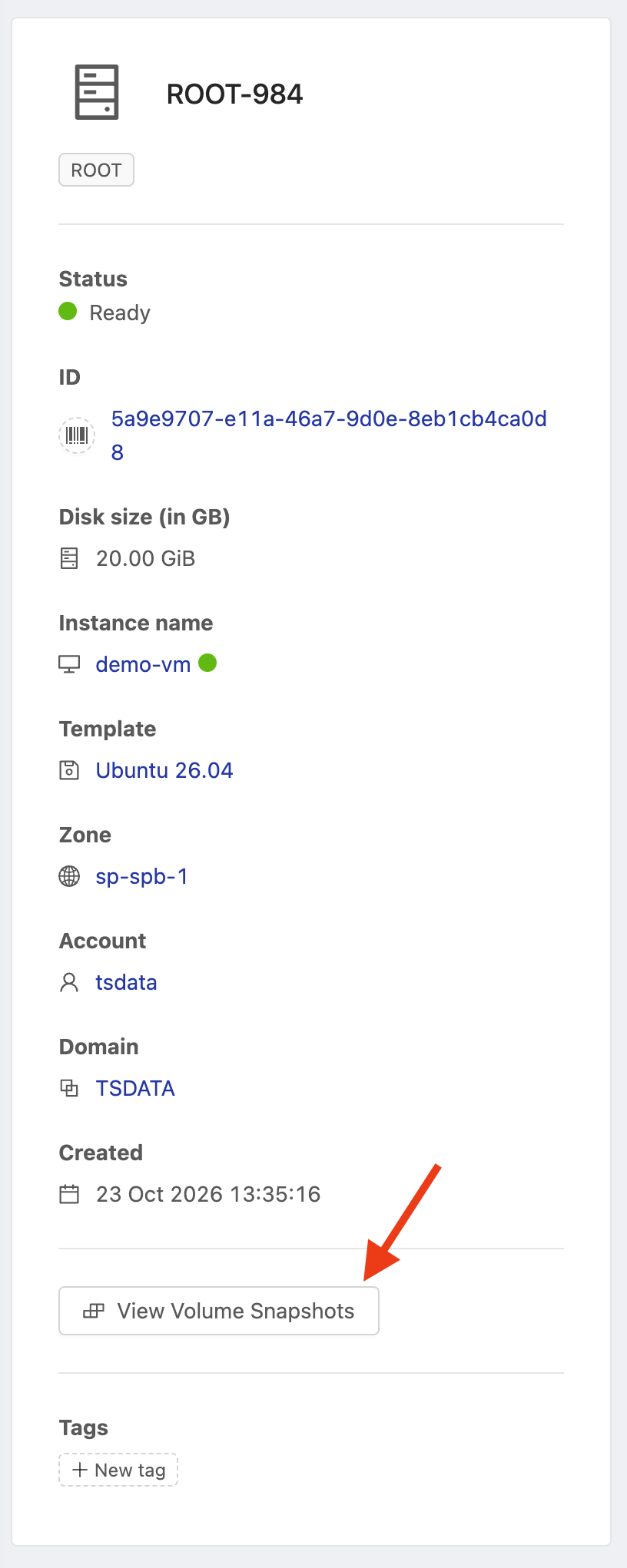
Find the snapshot by name and creation date. Check its status and wait for successful completion before considering it available. Use Refresh if the list has not updated. If the operation fails, check events and report the error to the responsible team.
Schedule recurring snapshots
Schedule recurring snapshots →
Backup checks
- Confirm that all required VM volumes are covered.
- Review scheduled runs and retention periodically.
- If an operation fails, record the volume, time and error message for investigation.
- Validate data recovery with the responsible team as part of your backup routine.