

Schedule recurring snapshots
Select the VM, open Volumes and choose the disk to protect. Review the prerequisites in Disk snapshots.
1. Open Recurring Snapshots
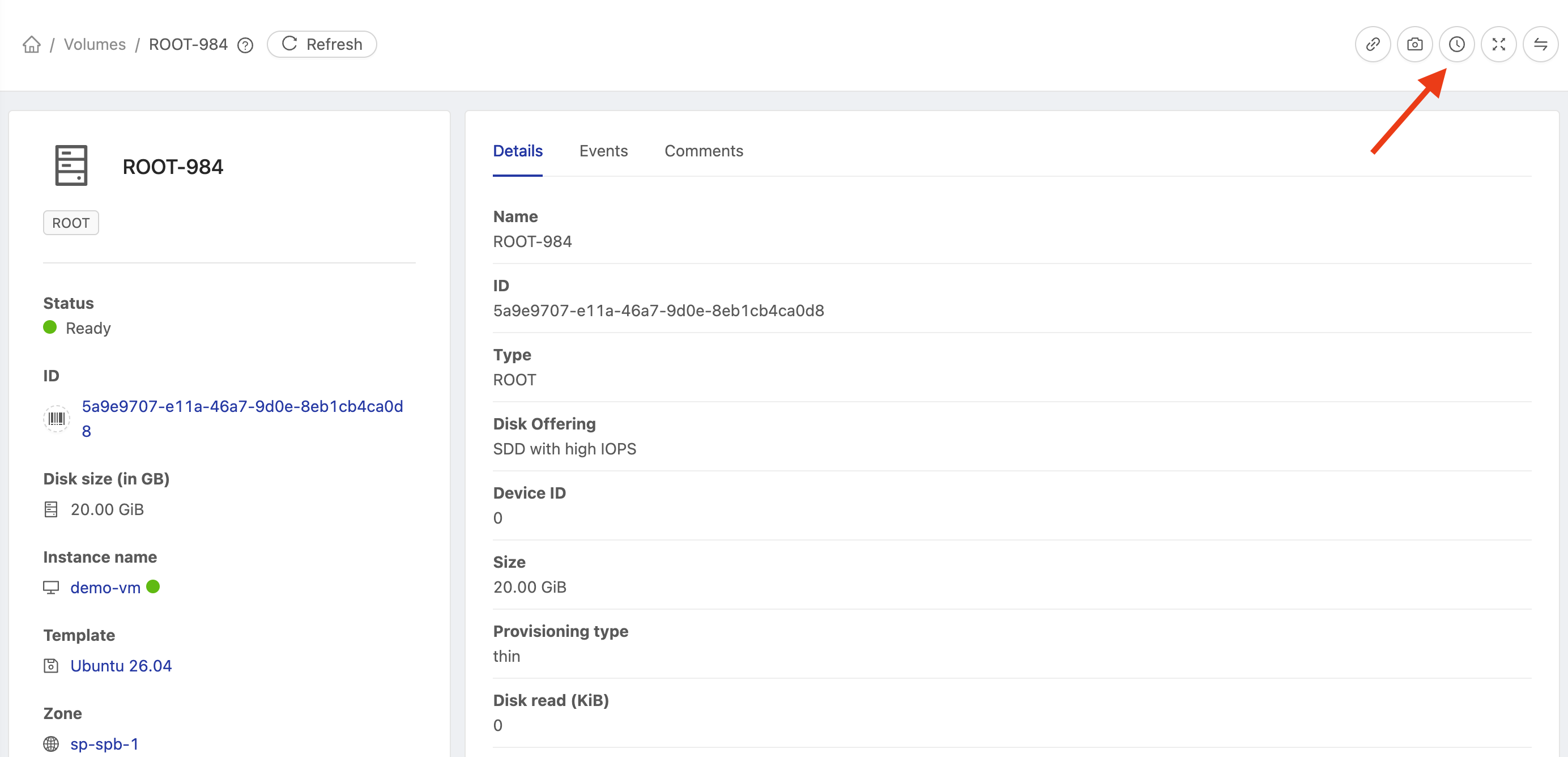
On the selected volume's details page, click the clock icon to open Recurring Snapshots.
2. Set the policy under Schedule
On the Schedule tab, configure these fields:
| Field | What to enter |
|---|---|
| Interval type | Select Hourly, Daily, Weekly or Monthly. |
| Time / scheduling fields | Set the time and any other fields displayed for the selected interval. |
| Keep | Number of recurring snapshots to retain for the policy. This is a snapshot count, not a number of days. |
| Timezone | Select the scheduling time zone. For Brasília time, use America/Sao_Paulo [Brasilia Time]. |
| Zones | Review the native zone and select additional zones if required and available. |
| Use primary storage replication | Leave disabled to follow the example. |
| Tags | Optional identifiers for organization. |
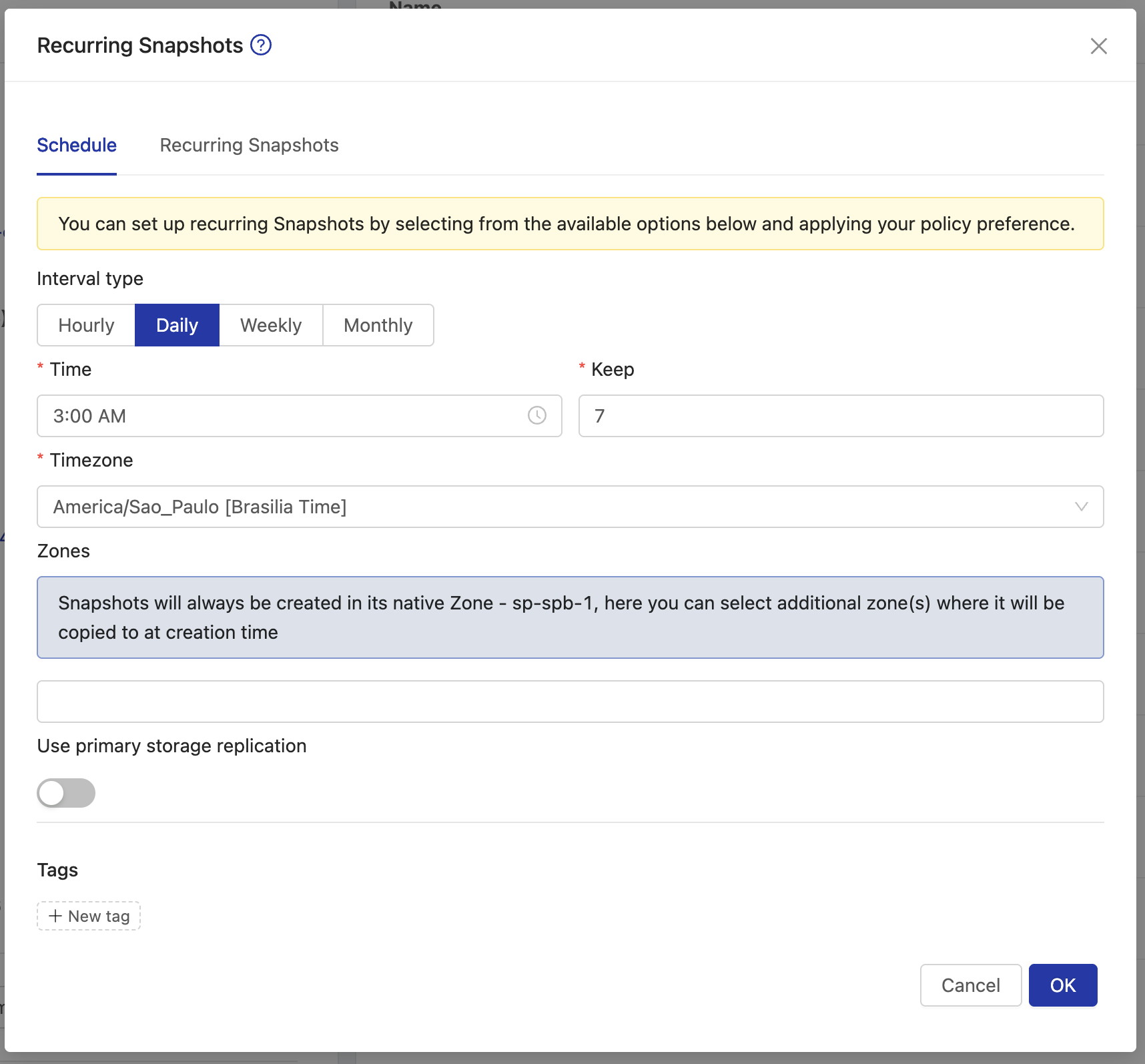
The screenshot shows an example of a Daily policy at 03:00, in America/Sao_Paulo, with Keep = 7. This retains up to seven snapshots from the policy; it does not guarantee seven days of history if runs fail. Adjust the values to your needs.
Older recurring snapshots exceeding retention are removed automatically; the policy does not apply to manual snapshots. See the CloudStack automatic creation and retention reference.
3. Save and monitor
- Review the interval, time, time zone and retention.
- Click OK to save.
- Reopen Recurring Snapshots and check the policy on the Recurring Snapshots tab.
- After the scheduled time, use View Volume Snapshots to verify the result.
Saving the policy sets up a schedule; it does not take an immediate manual snapshot. Use Take Snapshot if you need a snapshot now.