
Revert to Snapshot
Destructive operation: current disk contents will be replaced
This method replaces the current volume contents with the state recorded in the snapshot. All subsequent changes on that disk will be lost: created or modified files, application data, updates and settings stored on it return to the selected point in time.
This is not individual file recovery. Before applying the rollback, preserve any current data you still need and confirm that you have selected the correct volume and snapshot.
The rollback affects the volume associated with the snapshot. Other VM disks are not restored automatically. If an application uses several volumes, coordinate recovery to avoid mixing data from different points in time.
1. Shut down the VM
- Identify the VM that owns the volume.
- Shut down applications properly, then power off the VM.
- Wait until the console displays Stopped before continuing.
Keep the VM powered off throughout the restore. If you need to preserve the current disk state, make a copy or take a new snapshot and verify successful completion before reverting.
2. Locate the correct snapshot
Open Storage → Volume Snapshots. Alternatively, open the VM volume and use View Volume Snapshots.
Check the snapshot name, Volume name, creation date and time, account and zone. Also confirm the time zone used by the console. Open the snapshot only after matching it to the volume and VM you intend to restore.
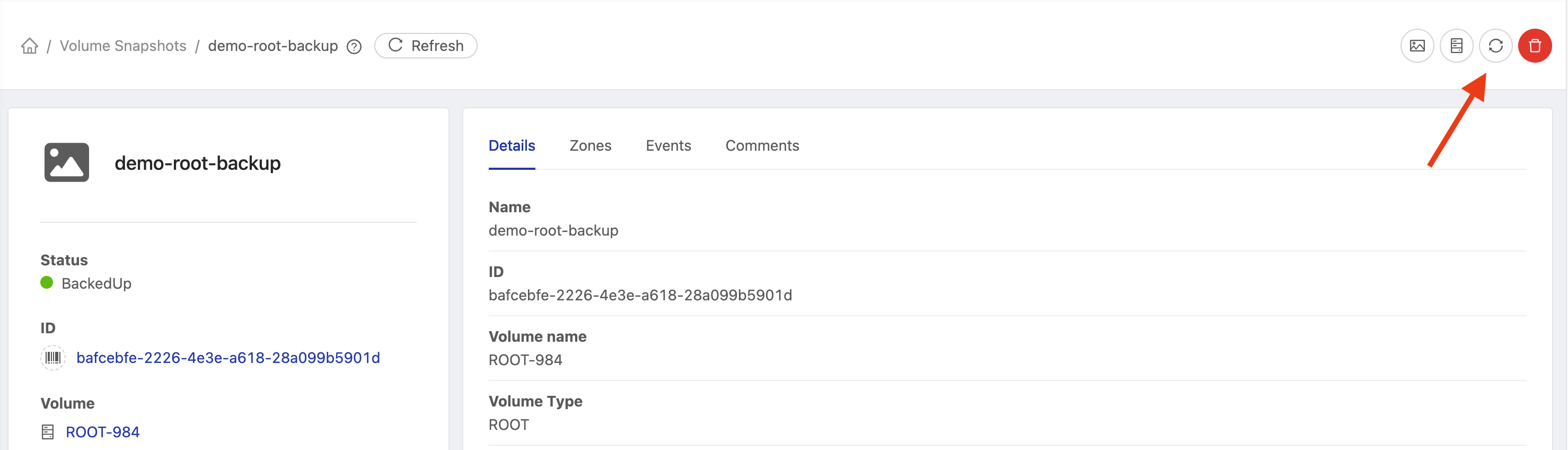
In the screenshot, demo-root-backup belongs to ROOT-984 and is BackedUp. These names are examples; use your own environment's resources. Do not proceed with a snapshot still being created or one that has failed.

3. Open Revert to Snapshot
On the snapshot details page, review the associated volume again. Click Revert to Snapshot, represented by the circular arrows icon in the upper-right corner, as indicated in the screenshot.
4. Review the warning and apply
The console opens the Revert to Snapshot dialog, asking you to confirm the volume rollback.
Before clicking OK
Clicking OK authorizes replacing the current disk contents with the selected snapshot. Subsequent changes on that volume will be discarded.
Confirm that the VM is Stopped, that the snapshot matches the intended disk and date, and that any needed current data has been preserved. If unsure, click Cancel.
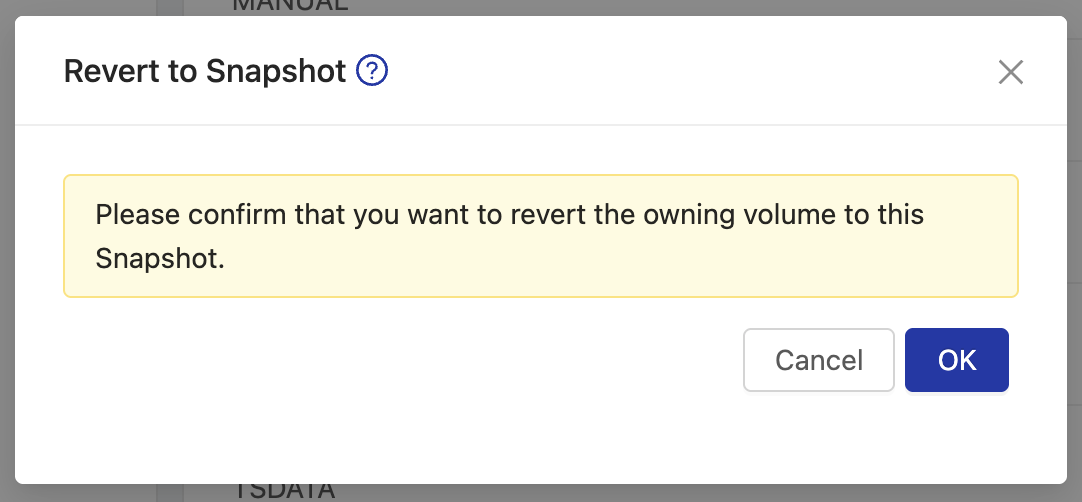
After reviewing, click OK and wait for completion. Confirmation only starts the restore: monitor its result in the console and events. Do not start the VM while the operation is in progress.
If an error occurs, keep the VM powered off and report the volume, snapshot and error message to the responsible team before retrying.
5. Start the VM and validate
After confirming successful restore completion:
- Return to the VM and power it on.
- Wait for the operating system and services to start.
- Check files, settings and applications on the restored volume.
The restored disk will contain the data recorded in the snapshot. For a system disk (ROOT), the operating system and settings stored on it also return to that state. Verify consistency with other disks and services used by the application.
Technical reference: Apache CloudStack volume snapshots.